vCard QR Code Generator: Share Contact Info Instantly
A vCard QR code generator lets you encode your complete contact information into a scannable code. Learn how to create, customize, and deploy them effectively.
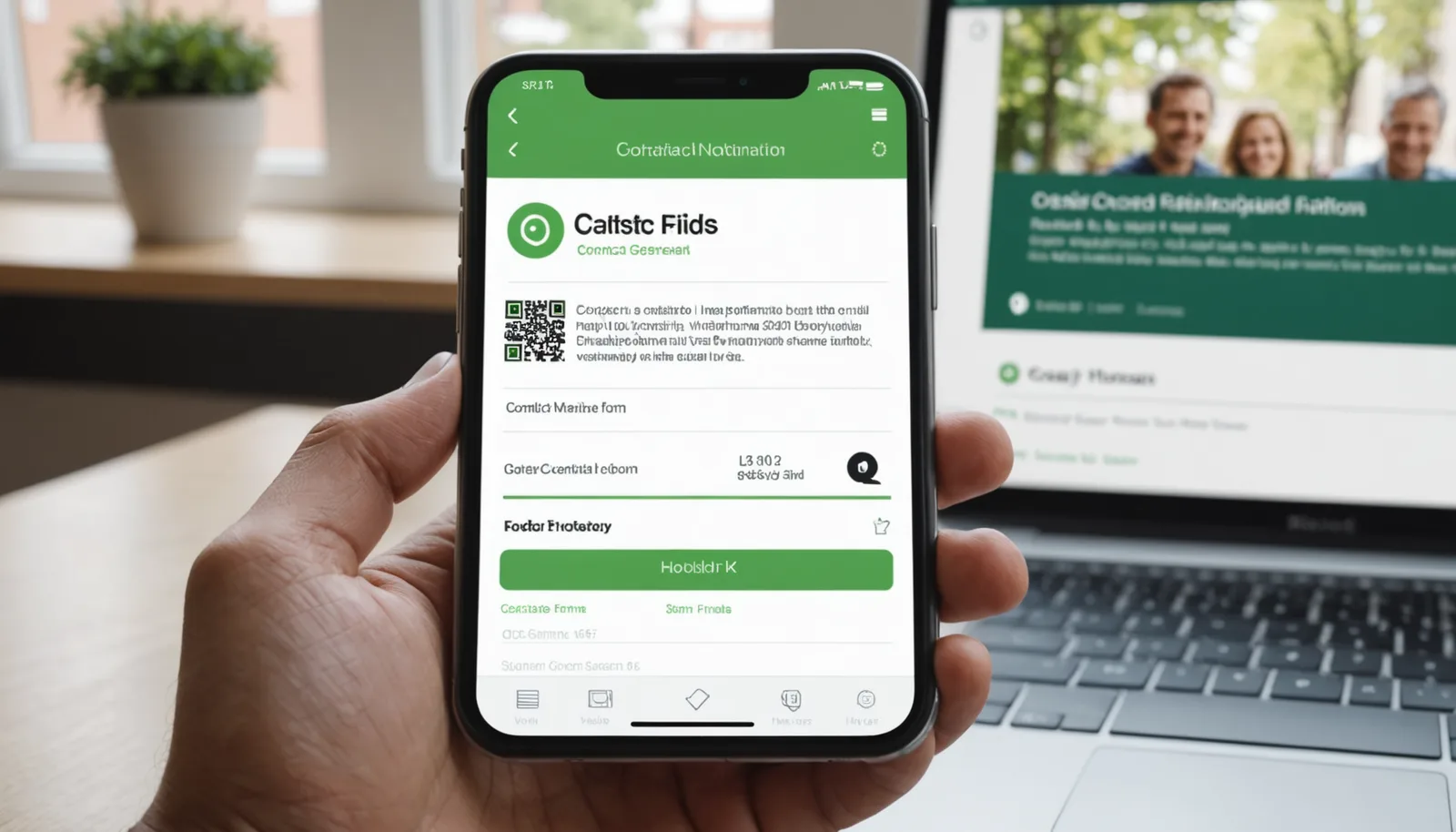
Business cards are still printed millions of times each year, yet they're static and hard to update. A vCard QR code solves this problem by encoding your name, phone, email, website, and address into a single scannable image that anyone can instantly add to their phone. Whether you're a real estate professional, recruiter, or small business owner, generating a vCard QR code takes seconds and eliminates the friction between meeting someone and staying in contact.
What Is a vCard QR Code and Why Use One?
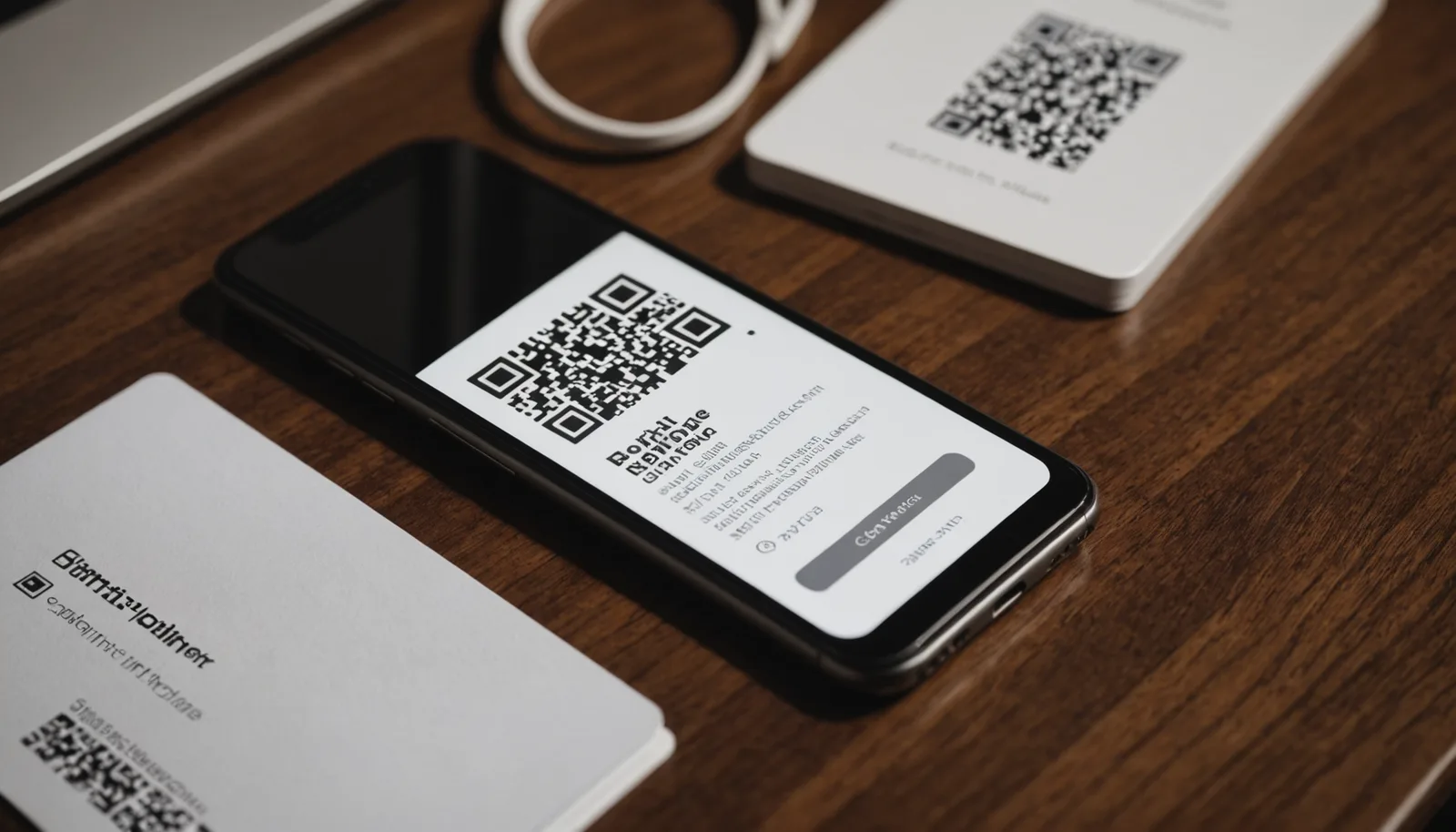
A vCard (virtual card) QR code is a two-dimensional barcode that contains standardized contact information. When someone scans it with a smartphone camera or QR reader, their phone automatically creates a contact entry with your details. Unlike a text-based QR code or a printed business card, a vCard QR code is dynamic—it preserves formatting, includes multiple fields (phone, email, organization, website), and can be scanned by any device without requiring an app.
The practical advantages are clear. Real estate professionals now frequently embed vCard QR codes on property listings and yard signs, allowing prospective buyers to save agent contact information directly. According to recent surveys covering QR code adoption in 2025 and 2026, contact-sharing tools like vCard generators rank among the most-requested features across free QR code platforms. A vCard QR code generator lets you create these codes instantly, with no login, no watermarks, and no per-scan limits.
Beyond business cards, vCard QR codes work on event materials, email signatures, websites, and printed collateral. You can print a vCard QR code on your business card, update your contact info by regenerating the code, and share it digitally with no friction. When you use a vCard QR code generator, you're essentially automating the contact-exchange process that traditionally required manual entry or business card swapping.
How to Generate a vCard QR Code in Three Steps
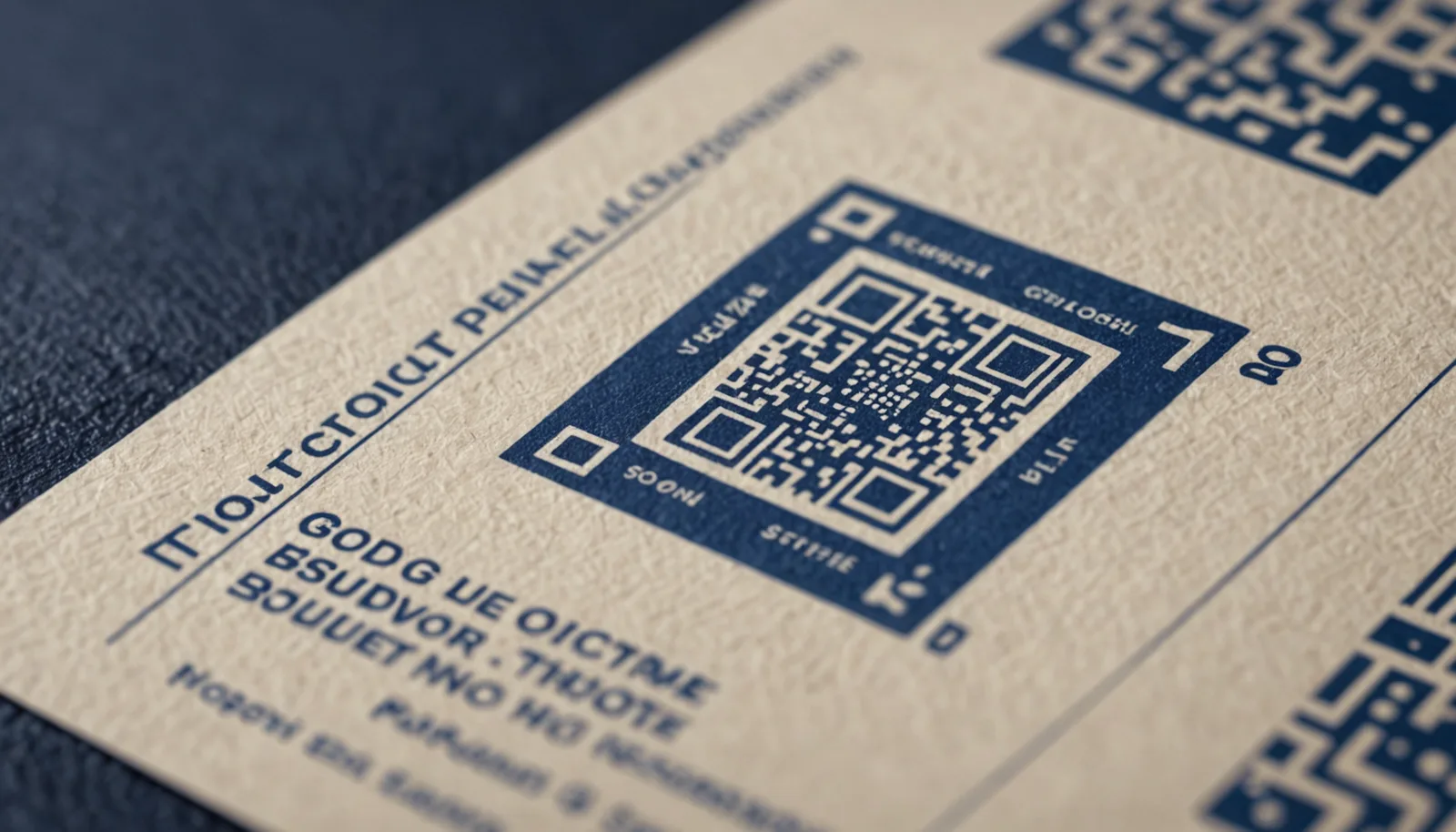
Creating a vCard QR code is straightforward. Start by opening a vCard QR code generator tool—no signup is required. Enter your contact details: name, phone number, email address, organization, website URL, and physical address if relevant. Most tools let you customize which fields are included, so you can keep it minimal (name and phone) or comprehensive (full business contact info). The generator then encodes this data into a QR format using the vCard standard (also called vCard 3.0 or 4.0).
Once you've entered your information, click 'Generate' and the tool produces a downloadable QR image. You can then download the image as PNG, SVG, or PDF depending on your use case. If you're printing it on a business card or poster, a PNG or PDF works best. If you're embedding it on a responsive website, SVG gives you scalability without quality loss. Most vCard QR code generators also let you customize colors, size, and add a logo in the center—though keep contrast strong so scanners can read it reliably.
Test your vCard QR code before publishing. Open your phone's camera app (iOS) or a QR scanner (Android), point it at the generated code, and verify that your contact details appear correctly in the preview. Adjust the size if needed—a typical vCard QR code is 200×200 pixels or larger for reliable scanning from a distance. With wrrk.space's QR code generator, you can generate a vCard QR code and download it immediately, with no file size limits or watermarks cluttering your design.
Customizing Your vCard QR Code for Branding
While the basic vCard QR code is functional, customization helps it stand out and reinforce your brand. Most modern vCard QR code generators let you change the foreground color (typically black) and background color (typically white) to match your brand palette. You can also adjust the size of the QR code itself and the error correction level—higher error correction means the code remains scannable even if partially obscured or printed at lower resolution.
Adding a logo to the center of your vCard QR code is a popular branding tactic, especially among real estate professionals and consultants. The logo replaces a small portion of the center of the QR code; the error correction algorithm ensures the code remains readable. Keep the logo simple and not more than 20-30% of the QR code's total area. Test the code after adding a logo to confirm scanners can still read it reliably across different devices.
Consider the context where your vCard QR code will appear. If printing on a white business card, high contrast (black QR code) works well. If placing on a website with a colored background, adjust the QR code colors accordingly. For email signatures or digital contexts, keep the QR code at least 1 inch × 1 inch (at 72 DPI) to ensure mobile scanners can focus on it. Some professionals generate multiple versions—a simple black-and-white version for print, and a branded color version for digital use.
Best Practices for Deploying vCard QR Codes
Placement is critical. On a physical business card, position your vCard QR code in a corner or along the edge so it's easily scannable without obstruction. Don't crowd it with other design elements. On a printed poster or flyer, place the vCard QR code near your name or organization name so viewers understand what information they're about to access. Include a small line of text ('Scan to save contact') to prompt action, especially for older audiences less familiar with QR codes.
For digital deployment, embed your vCard QR code in email signatures, website footers, and LinkedIn profiles. Make it clickable—link the image to a landing page where viewers can also manually enter your contact info if scanning doesn't work. This dual approach maximizes accessibility. In blog posts, product pages, or event materials, position the vCard QR code where the eye naturally rests, typically near the author bio or call-to-action section.
Track engagement if you're using a QR code platform with analytics. Some premium tools log how many times your vCard QR code was scanned, which devices scanned it, and from which locations. This data helps you refine your distribution strategy—if a vCard QR code on your website gets high scan volume from mobile users, you know that promoting it in mobile-first channels (social media, SMS) is effective. Update your vCard QR code whenever your contact information changes; regenerate it with your new details and replace the old image.
Frequently asked questions
+−Can someone edit my contact information after I share a vCard QR code?
No. A vCard QR code encodes static information at the time of generation. Once someone scans it and saves the contact, they can edit the entry in their phone's contacts app, but the QR code itself cannot be remotely updated. To distribute new contact information, generate a new vCard QR code with the updated details.
+−What's the difference between a vCard QR code and a regular QR code?
A vCard QR code encodes contact information in the vCard format, so scanning it automatically creates a contact entry on the phone. A regular QR code typically links to a URL or contains text. vCard QR codes are specifically designed for contact sharing, while regular QR codes serve broader purposes like directing to websites or displaying messages.
+−Do I need an app to scan a vCard QR code?
No. Most modern smartphones (iPhone 11 and later, Android 8 and later) have built-in QR code readers in the native camera app. Simply open your camera, point it at the vCard QR code, and tap the notification that appears. No third-party app is required.
+−What information can I include in a vCard QR code?
A vCard QR code can include name, phone number, email, organization, job title, website URL, physical address, and social media profiles. Most generators let you choose which fields to include. Keep it concise—including too many fields increases QR code complexity and may affect scannability.