How to Make a QR Code for WhatsApp
Learn how to generate QR codes for WhatsApp contacts, business profiles, and payment links—plus best practices for sharing and tracking engagement.
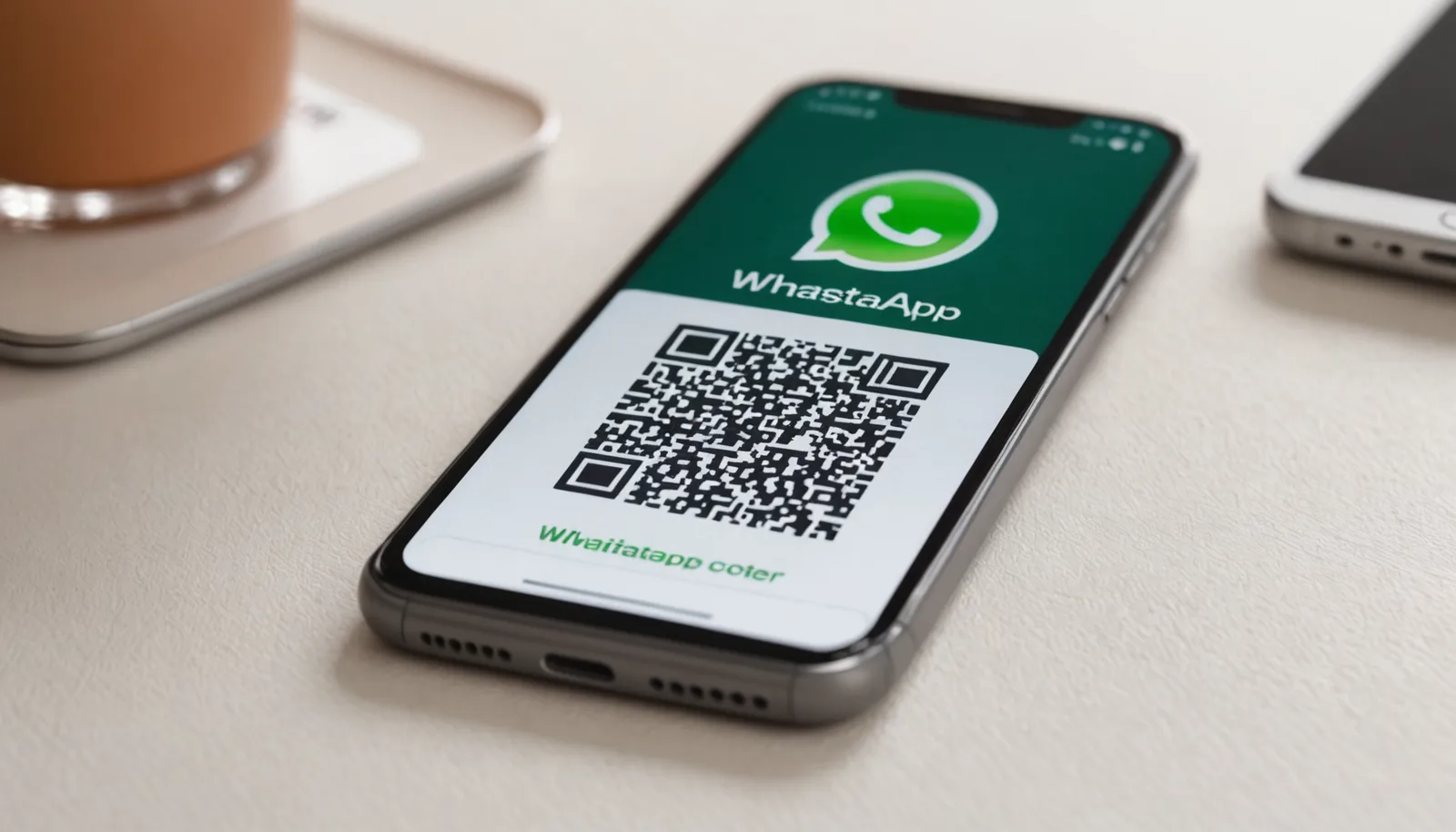
WhatsApp QR codes have become essential for businesses and individuals alike. With over 100 million QR codes scanned daily, these scannable links offer a frictionless way to connect people to WhatsApp conversations, groups, and payment options without manually exchanging phone numbers. Whether you're a small business looking to streamline customer contact or someone setting up a support channel, knowing how to make a QR code for WhatsApp can save time and reduce errors. This guide walks you through the process, tools, and strategies to create and deploy QR codes effectively.
Why WhatsApp QR Codes Matter for Business and Personal Use
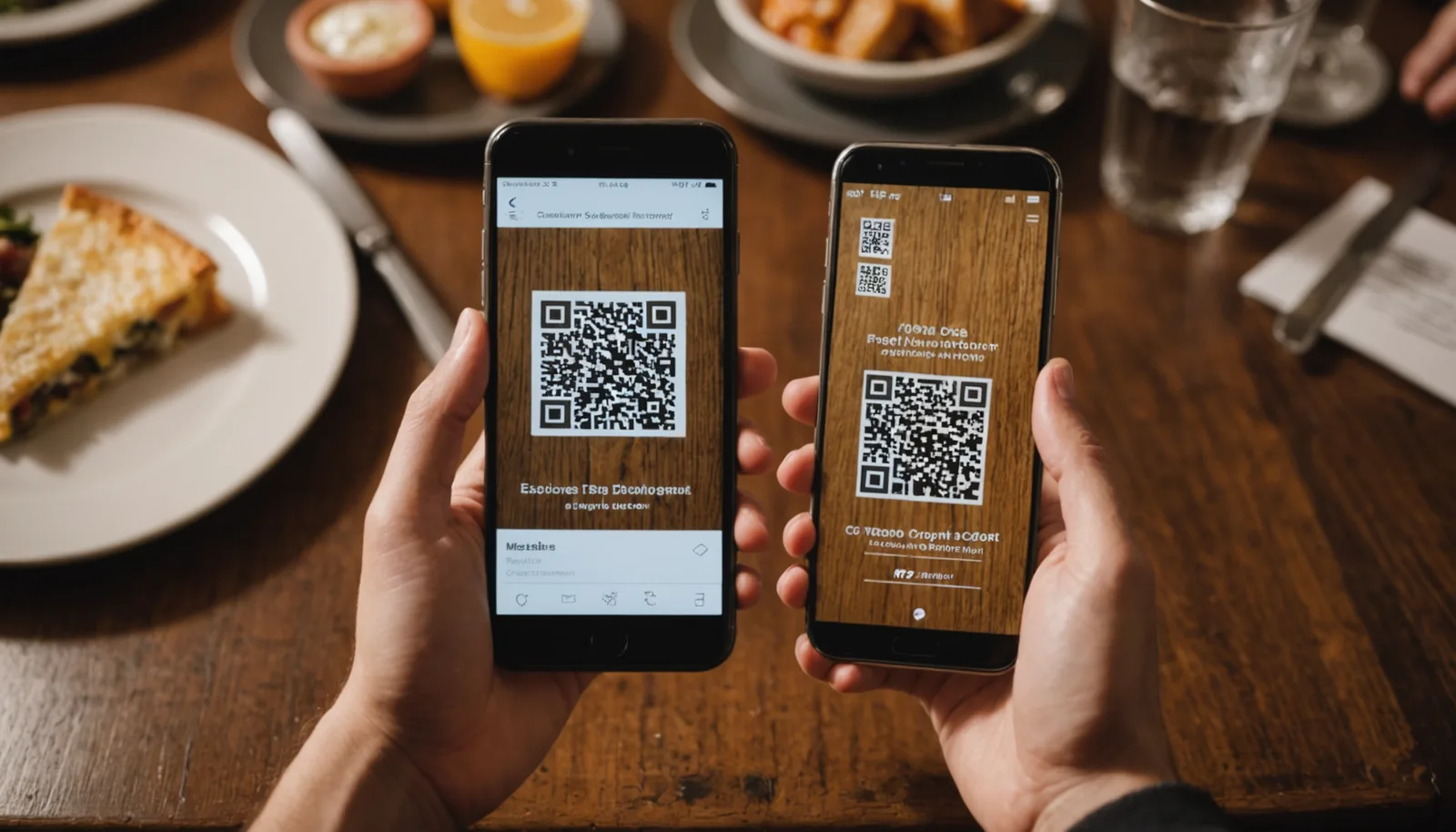
QR codes simplify connection. Instead of asking customers to type out a phone number or search for your business profile, a single scan takes them directly to a WhatsApp chat. This is especially valuable for restaurants, service providers, and support teams. When WhatsApp introduced QR code payments for small businesses in 2025, the use case expanded beyond just contact-sharing into transactions and verified identity.
The security advantage is real too. Traditional phone sharing can expose your number to spam or unwanted contact. A WhatsApp QR code puts you in control: you choose where and when to distribute it, reducing exposure to bots and harvesters. You can also rotate or revoke QR codes if needed, something you can't do with a static phone number.
From a user perspective, scanning is faster and more accurate than typing. Studies on mobile behavior show that QR code interaction rates are highest when placed on printed materials, product packaging, and storefronts—contexts where typing a number is inconvenient. When you make a QR code for WhatsApp, you're removing friction from the first step of contact.
For teams and communities, WhatsApp group QR codes eliminate the back-and-forth of sending invites. A single code can be posted on your website, printed on flyers, or shared via email. Anyone with WhatsApp installed can scan and join instantly.
How to Generate a WhatsApp QR Code: Step-by-Step

The simplest way to make a QR code for WhatsApp is to use WhatsApp's built-in QR feature. Open WhatsApp on your phone, go to Settings > Profile > QR Code, and tap the code to reveal your personal QR. You can share this directly or take a screenshot to print or email it. For group QR codes, open the group chat, tap the group name, and select Group QR Code. This native feature is the fastest option if you only need a basic personal or group link.
For more control—custom branding, batch generation, or integration with other tools—use a free QR code generator like the one at wrrk.space/qr-code-generator. Enter your WhatsApp contact URL (formatted as https://wa.me/[phone-number] or https://chat.whatsapp.com/[group-invite-code]) and generate a code in seconds. No signup required, no watermarks. You can download the code as PNG or SVG, then resize, print, or embed it anywhere. This approach gives you flexibility: you can test different URLs, track which codes perform best, or customize the appearance for branded materials.
To create a direct chat link, use the wa.me format. For example, https://wa.me/14155552671 opens a WhatsApp chat with that number. When you add a message parameter (?text=Hello), the message pre-fills when someone opens the link. Generate a QR code pointing to this URL, and scanners land directly in a conversation—not just the contact card. This is powerful for support lines or sales teams.
Group invites follow a similar logic. Every WhatsApp group has a unique invite link (visible in Group Settings > Invite via Link). Feed this URL into a QR generator, and you create a shareable code that adds people to the group without needing the group admin to manually invite each person. This scales well for communities, classes, or events.
Best Practices for Deploying WhatsApp QR Codes
Placement matters as much as the code itself. Print QR codes on business cards, menus, invoices, and receipts where they're easy to spot and scan. On digital channels, embed them in email signatures, website contact pages, and social media bios. Avoid cluttered backgrounds and ensure adequate white space (the "quiet zone") around the code—at least 4 modules on all sides. A code squeezed into a corner or overlapped by text will fail to scan.
Size scales with scanning distance. A QR code on a business card (1-inch) is scanned from 2-3 inches away. A code on a billboard should be 1 meter or larger to scan from 10+ meters. If you're testing different placements, how to scan a QR code with your phone varies by device: iPhone users can point the camera app at the code, while Android users may need to install a scanner or use Google Lens. Either way, the code must be large and clear enough to trigger recognition in under 2 seconds.
Consider your audience's tech comfort. Younger users and smartphone-heavy demographics will scan instantly. In contexts where your audience is less tech-savvy—elderly customers, certain regions—pair the QR code with text instructions or a traditional phone number as a fallback. This dual approach maximizes conversion without excluding anyone.
Track engagement by using URL parameters or UTM codes. Instead of linking directly to wa.me/[number], use a link shortener (like bit.ly or your own domain) to wrap the WhatsApp URL. Track clicks and scans to see which codes perform best. This data informs future placement decisions and helps you optimize where and how you share your WhatsApp contact.
Common Pitfalls and How to Avoid Them
One frequent mistake: scanning a QR code without verifying the destination. Security researcher findings from 2025 highlighted risks like GhostPairing Attacks, where malicious actors impersonate WhatsApp links. Always test your codes before distribution. Click the link yourself on both iOS and Android to confirm it opens WhatsApp and targets the correct contact or group.
Another issue is outdated codes. If you change your phone number or disband a group, the old QR code becomes useless or, worse, routes people to the wrong chat. Document your QR codes and their purpose. If you retire a code, replace the printed or digital version promptly. For long-term use, group QR codes are more stable than personal ones since they're tied to the group, not a phone number.
Avoid embedding QR codes in images without sufficient contrast. Use a light background and dark code (or vice versa). Test the code in different lighting conditions—indoors, outdoors, under fluorescent lights. A code that looks clear on your screen might fail to scan on a printed menu under restaurant lighting. Use a QR code scanner app to test before finalizing.
Don't oversimplify the message pre-fill. If you're using a wa.me URL with a text parameter, keep the message short and relevant. A lengthy intro can annoy users or trigger WhatsApp spam filters. Stick to a friendly greeting or a clear call-to-action (e.g., "?text=Hi! I'd like to place an order").
Frequently asked questions
+−Can I create a WhatsApp QR code without a smartphone?
Yes. WhatsApp's native QR generator requires a phone, but you can use web-based QR code generators to create codes linking to your WhatsApp number or group invite URL. Simply visit a QR generator, enter your wa.me link, and download the code from your computer. You don't need WhatsApp installed on the device generating the code.
+−What's the difference between a personal and group WhatsApp QR code?
A personal QR code links to an individual's WhatsApp contact and opens a 1-to-1 chat when scanned. A group QR code links to a specific WhatsApp group and automatically adds the scanner to that group. Group codes are more useful for inviting multiple people; personal codes are better for customer support or sales outreach.
+−Do WhatsApp QR codes expire?
Personal and group QR codes don't technically expire, but they become invalid if you delete the group or change your phone number associated with the code. WhatsApp doesn't set a time limit. However, if the URL or link changes, the code stops working. It's best to refresh or regenerate codes periodically if you change contact details.
+−How do I know if my WhatsApp QR code is secure?
Test the code yourself before sharing it widely. Scan it on multiple devices to confirm it routes to the correct WhatsApp chat or group. Avoid clicking QR codes from unknown sources. If you notice unusual activity after sharing a code, regenerate it. For business use, generate codes from trusted sources like WhatsApp itself or established QR generators like wrrk.space.