QR Code for Business Card: Setup Guide
QR codes on business cards turn paper into a gateway to your digital presence. Here's exactly how to generate, customize, and integrate them into your card design.
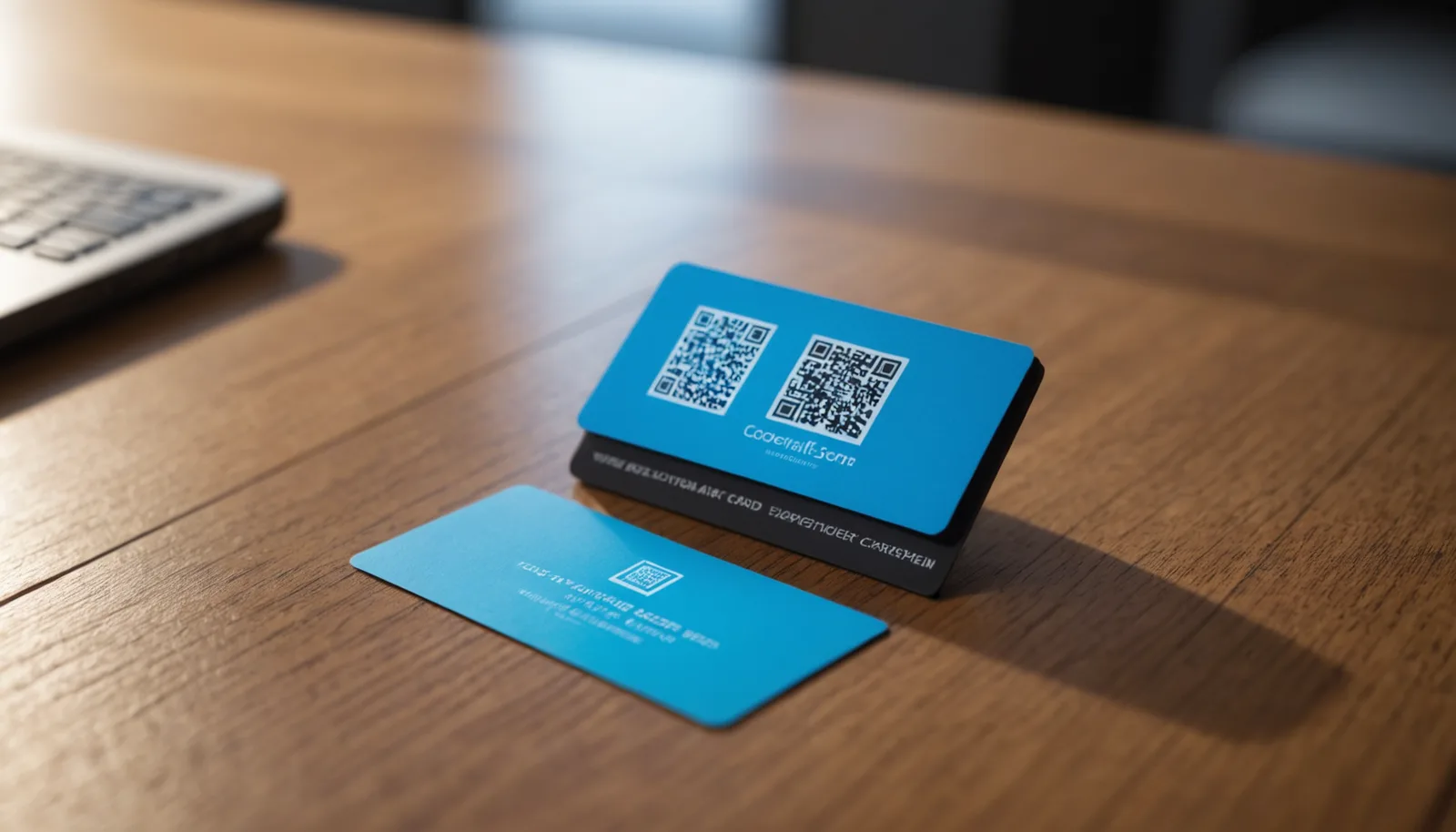
Business cards are still one of the most effective networking tools—but static text and phone numbers are losing ground to interactive alternatives. A QR code for your business card bridges the gap between print and digital, letting contacts instantly access your website, LinkedIn profile, contact details, or portfolio without typing a single character. According to recent insights on QR code adoption, embedding these codes on physical cards has become a standard practice for professionals across industries. This guide walks you through creating, designing, and printing a QR code that actually works and looks professional on your card.
Why Add a QR Code to Your Business Card?
A QR code for your business card solves a real friction point: after someone pockets your card at a networking event, they either enter your details manually or forget about you. With a scannable code, you're removing that extra step. The moment someone's phone is near your card, they can instantly visit your website, download your resume, save your contact to their phone, or connect with you on LinkedIn.
Beyond convenience, QR codes on business cards send a signal that you're current and tech-aware. They also give you measurable data—most QR code generators track how many times your code is scanned, who scanned it, and when. This means you can actually measure the ROI of your business card distribution, something a printed URL simply can't do.
The flexibility is another major advantage. A QR code can link to different destinations depending on your needs: a vCard (contact file), your portfolio, a booking link, or even a PDF with samples of your work. Unlike a business card's fixed text, you can update where your QR code points without reprinting—as long as you're using a dynamic QR code solution.
Best of all, generating a QR code for your business card is free and takes seconds. You can use wrrk.space's QR code generator to create your code, customize the design to match your branding, and download it in high resolution ready for print.
How to Generate a QR Code for Your Card in Minutes
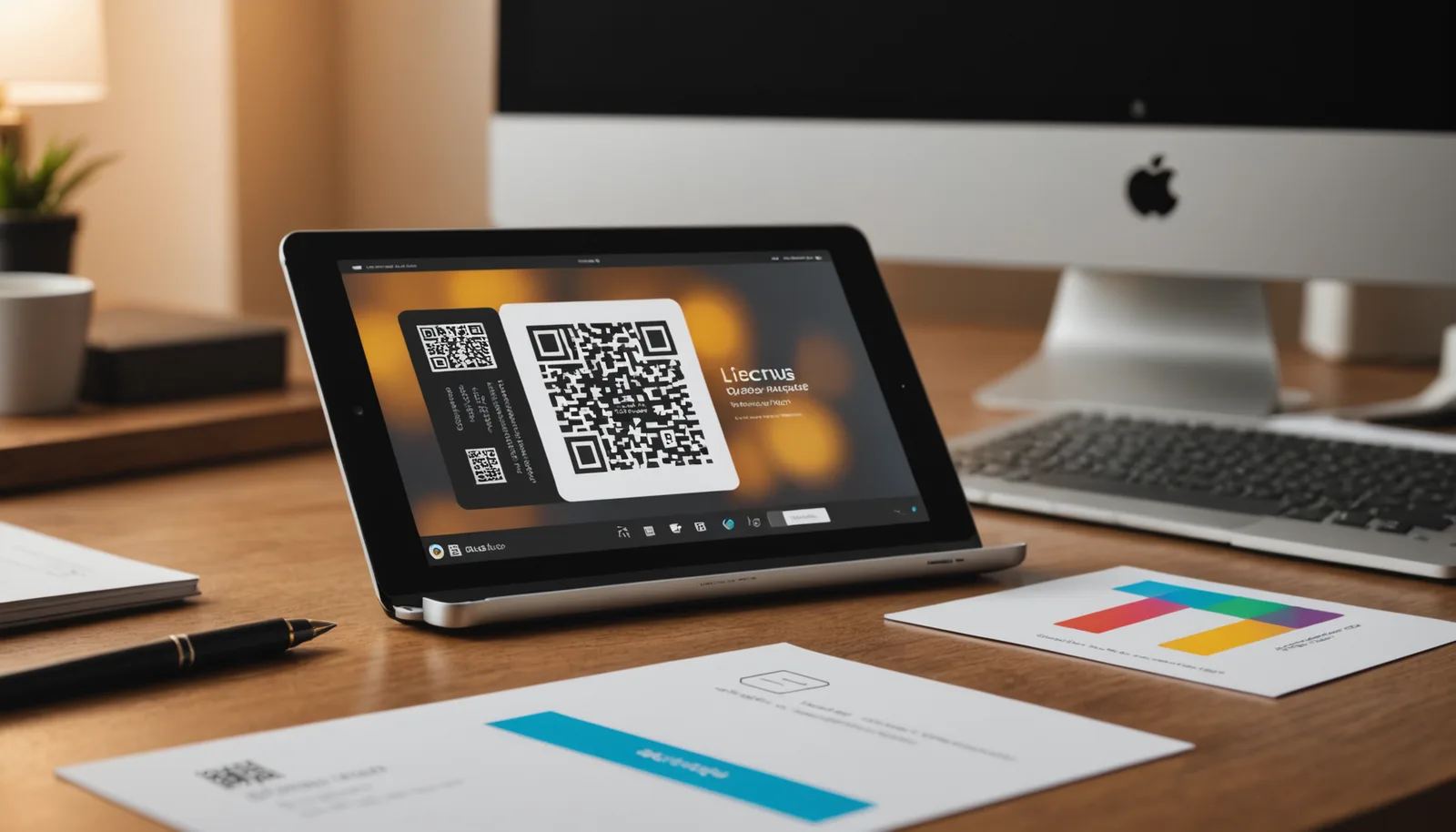
The technical process is straightforward. First, decide what you want your QR code to link to—your website URL, LinkedIn profile, vCard file, or a custom landing page. Then, use a QR code generator to create the code. Wrrk.space's QR code generator is designed for exactly this: paste your link, hit generate, and you get an instant, high-resolution code ready to download.
When choosing what content to link to, consider your audience and goals. A sales professional might link to a vCard or contact form. A designer or creative professional typically links to a portfolio. A consultant might direct people to a booking page or newsletter signup. The data shows that QR codes linking to contact information or portfolios have the highest scan rates, so choose a destination that aligns with your primary business objective.
Once you've generated your code, download it as a high-resolution PNG or SVG file—never use a low-resolution JPEG, especially if you're printing. The code needs to be crisp and clear to scan reliably on a small business card. A good rule of thumb: your QR code should be at least 1 inch × 1 inch when printed, though 1.5 inches is ideal for reliable scanning.
Before you finalize your design, test your QR code on multiple devices—iOS and Android—and from different distances and angles. This ensures it scans reliably in real-world conditions, not just in perfect lighting. If it doesn't scan cleanly, your business card becomes a missed opportunity rather than a bridge to your digital presence.
Designing Your QR Code to Match Your Brand
A plain, black-and-white QR code works, but adding brand elements makes your card more memorable. You can customize your QR code's color scheme, add a logo to the center (called a 'logo QR code' or branded QR code), or adjust the error correction level to allow for more design flexibility. The key is ensuring the code remains scannable after customization—there's a balance between aesthetics and function.
If you're adding color, keep contrast high. A dark code on a light background is always safer than light-on-dark. Some professionals use their brand's primary color for the code pattern while keeping the background white. Others reverse it—a white code on a colored background—but this requires careful color selection to maintain readability. Avoid pastel combinations that look elegant but fail to scan.
Adding a small logo or icon in the center is a popular tactic for branded business cards. However, this reduces the code's error correction margin, so ensure your QR code generator supports this feature and that you test the result thoroughly. A logo that's too large or placed incorrectly can break the scanning functionality entirely. The sweet spot is typically a small, high-contrast logo covering no more than 20% of the code's center.
Your QR code's placement on the card matters too. Position it in a corner where it won't compete with your name or headline, but where it's still easily visible and accessible to scan. Avoid placing it upside down or at extreme angles—scanners work best with codes oriented right-side up. Include a small label like 'Scan me' or 'Tap to connect' to prompt action, especially if your audience isn't accustomed to QR codes on business cards.
Avoiding Common QR Code Business Card Mistakes
One critical mistake is using a static QR code service where you don't own the infrastructure. If the service shuts down or changes its pricing model, your QR code stops working the moment you stop paying—leaving thousands of printed cards as dead links. This is why using a trusted, established generator like wrrk.space is important; your code runs independently and doesn't rely on a subscription service.
Another frequent error is making the QR code too small. A 0.5-inch code on a business card looks polished but often fails to scan on first try. Aim for at least 1 inch × 1 inch. Similarly, printing your QR code at low resolution leads to pixelation and scanning failures. Always export as PNG or SVG at 300 DPI or higher if you're working with a print shop.
Testing is often skipped, and that's costly. Some people generate a QR code, place it on their card design, and send it to print without ever actually scanning it. By the time they distribute 500 cards, they discover the code doesn't work. Spend 30 seconds testing on iOS and Android. Different phones and QR reader apps have slight variations in compatibility.
Finally, avoid linking to a destination that's broken or outdated. If your QR code points to a landing page that no longer exists, or a contact form that's been removed, your card becomes frustrating rather than helpful. Use a dynamic QR code when possible—one that lets you update the destination without reprinting. This flexibility is especially valuable if your website gets redesigned or you change roles within your company.
Frequently asked questions
+−What should I link my business card QR code to?
Link to a destination that serves your primary business goal: a vCard for instant contact saving, your portfolio or website for visual professionals, a booking or contact form for service providers, or your LinkedIn profile for B2B networking. Test different destinations to see which generates the most engagement.
+−How large should a QR code be on a business card?
Aim for at least 1 inch × 1 inch, with 1.5 inches being ideal for reliable scanning. The code should be easily scannable from 6-12 inches away without requiring perfect lighting or multiple attempts. Ensure it's printed at 300 DPI or higher to avoid pixelation.
+−Can I change where my QR code links after printing?
With a dynamic QR code, yes—you can update the destination without reprinting. With a static QR code, no. Always use a dynamic solution if you plan to update your card's destination later or if your links might change.
+−What's the best format to download my QR code for printing?
Download as PNG or SVG in the highest resolution available (300 DPI minimum). Avoid JPEG format, which compresses the image and can create scanning errors. SVG is vectorized and scales perfectly at any size without quality loss.