How to Make a wa.me Link: Complete Guide
wa.me links let you share WhatsApp conversations without requiring contacts to save your number first. Here's how to create them—and why they work.
Nearly 100 million WhatsApp messages are sent every minute, yet most businesses and individuals still rely on outdated contact-sharing methods. A wa.me link solves this problem instantly—it's a direct, clickable URL that opens a WhatsApp chat with you, no contact save required. Whether you're running a business, managing customer support, or just making it easier for people to reach you, learning how to make a wa.me link is one of the simplest ways to streamline communication. This guide walks you through the process, common issues, and the fastest way to generate these links.
What Is a wa.me Link and Why You Need One?
A wa.me link is a URL that directs someone directly to a WhatsApp conversation with you. When clicked on any device—desktop, tablet, or mobile—it opens WhatsApp and pre-populates a chat window with your phone number. Unlike traditional contact sharing, there's no friction: visitors don't need to save your number, navigate their contacts, or manually search for your name. They just click and start typing.
The format is simple: wa.me followed by your phone number (including country code, without spaces or symbols). For example, wa.me/1234567890 opens a chat with that number. WhatsApp automatically formats the link, and it works across every platform where WhatsApp is available—iPhone, Android, web, and desktop apps.
Recent updates to WhatsApp's messaging system have made these links more valuable than ever. As reported by industry sources, WhatsApp now emphasizes sending messages without saving contacts, and wa.me links are the preferred method for businesses doing exactly that. Customer service teams use them in email signatures, support pages, and marketing materials. E-commerce sites add them to checkout pages to offer pre-sales support. You can even generate a WhatsApp link with a pre-written message, so visitors land in a conversation that's already contextualized with your greeting or offer.
You can create a wa.me link manually in seconds, or use our free WhatsApp link generator tool to customize it with pre-filled messages and format everything perfectly.
How to Create a wa.me Link Manually
The manual method requires nothing but your phone number and a text editor. Start with the base URL: wa.me/. Then add your country code (starting with +, but expressed as a number only in the URL). For a US number, that's 1. For India, it's 91. Then add the rest of your phone number without spaces, dashes, or parentheses. A complete example: wa.me/14155552671 (a US number). Test it by pasting it into your browser address bar—it should open WhatsApp and display your number ready for a new chat.
If you want to add a pre-written message, append ?text= followed by your message (with URL encoding). For instance: wa.me/14155552671?text=Hello%20I%20need%20help. Each space becomes %20, and special characters are encoded accordingly. This pre-fills the message box so visitors see your greeting immediately. It's useful for qualifying leads—a customer lands with 'How can I help?' already visible, setting expectations and speeding up conversations.
The manual approach works, but it's error-prone. Country codes must be exact, special characters must be URL-encoded correctly, and testing takes extra steps. Mistakes—like forgetting to remove formatting from your number or encoding a plus sign—break the link. For anyone creating more than one or two links, or wanting to track clicks and manage multiple numbers, the manual method becomes tedious quickly.
That's why most professionals use the WhatsApp link generator at wrrk.space to create a wa.me link. It handles the formatting automatically, lets you preview the link before sharing, and generates QR codes for offline use—all without signing up or adding watermarks.
How to Use a WhatsApp Link Generator Tool
A WhatsApp link generator simplifies the entire process. Enter your phone number (in any format—the tool normalizes it), write your optional pre-message, and the tool generates a clean, ready-to-share link instantly. No encoding headaches, no guessing country codes. Most generators also validate your number format in real time, catching errors before you share a broken link.
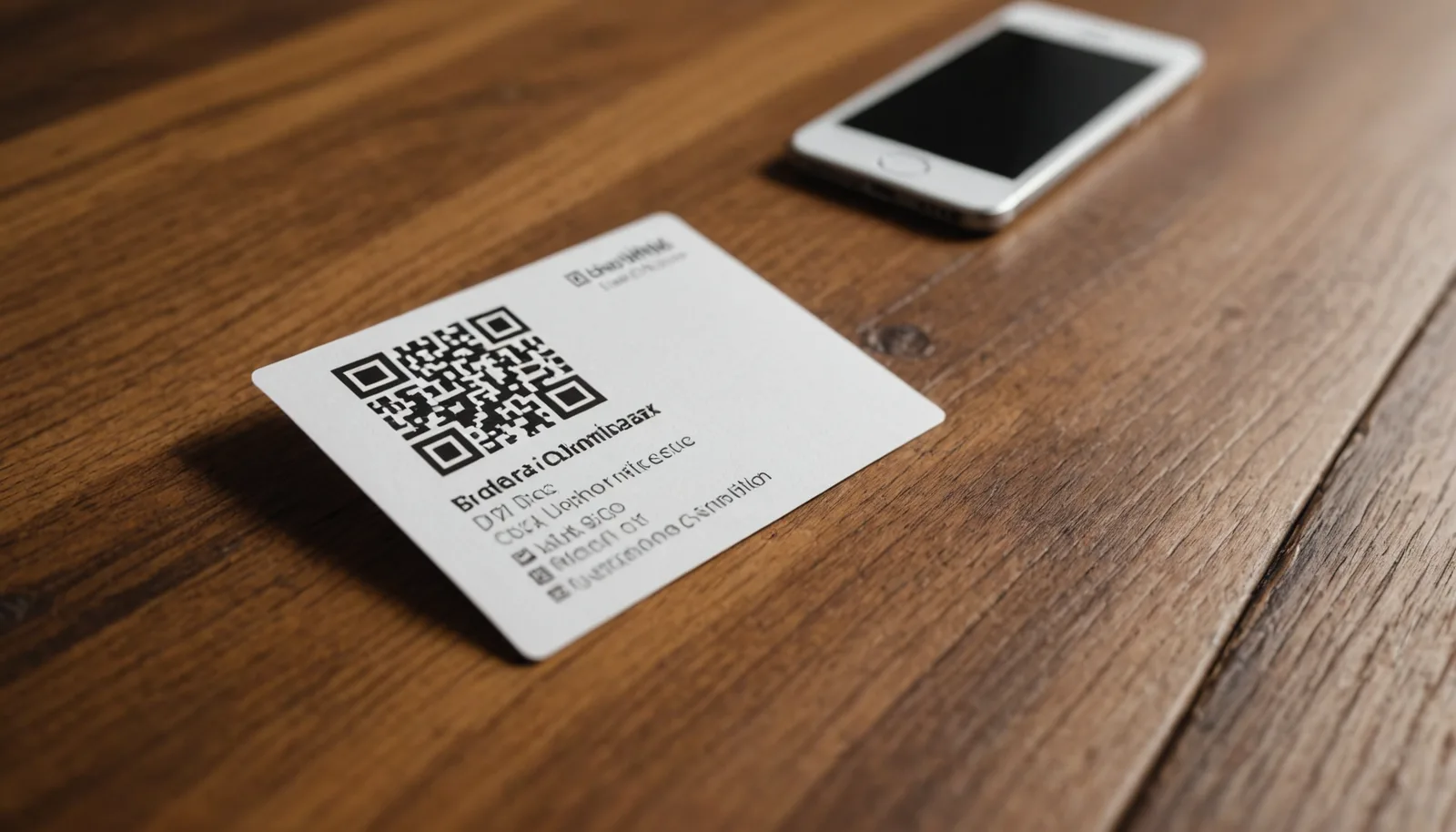
The best tools go further. Our WhatsApp link generator at wrrk.space lets you generate a QR code from your wa.me link—perfect for printing on business cards, posters, or packaging. Customers scan the code with any smartphone camera, and WhatsApp opens directly. This is especially powerful for retail, restaurants, and events where you want frictionless contact sharing. You can also copy the raw link, embed it in HTML, or share it on social media.
The workflow is straightforward: enter your country and phone number, add a greeting message if desired, click Generate, and copy the link or QR code. Everything runs in your browser—no data is saved, no signup required, and no watermarks are added. For businesses managing multiple numbers (support, sales, billing), you can generate different links for each department, each with a tailored message.
Advanced users can customize the message to route conversations. A sales link might say 'I'm interested in your product,' while a support link says 'I need help with an order.' This pre-context means conversations start with clarity, reducing back-and-forth clarification and improving response quality.
Common Issues and How to Fix Them
One of the most common problems reported recently is that wa.me links occasionally return errors, especially during browser or WhatsApp updates. If your wa.me link isn't working, first verify the phone number format: it must include the country code, no + symbol in the URL, and no spaces or dashes. Try opening the link in an incognito or private browser window to rule out caching issues. If that fails, clear your browser cache and try again.
Another frequent issue: the link works on mobile but not on desktop, or vice versa. This usually means WhatsApp Web isn't enabled on your account, or the device doesn't have an active WhatsApp session. On desktop, make sure you've scanned the WhatsApp Web QR code and your session is active. On mobile, ensure WhatsApp is installed and up to date. If the link opens but shows an error like 'Phone number doesn't match,' double-check that your country code is correct—some countries have multiple codes, and using the wrong one breaks the link.
If you're using a pre-filled message and it's not appearing, the issue is usually in the URL encoding. Spaces must be %20, ampersands must be %26, and other special characters need proper encoding. Pasting a message directly into the URL without encoding breaks the link. Using a generator tool eliminates this problem entirely—it handles encoding for you.
One more edge case: if you're sharing a wa.me link internationally and recipients are in countries where WhatsApp is restricted, the link will fail. No amount of fixing the URL will help; the issue is infrastructure-level. In those cases, provide alternative contact methods or suggest a VPN (though that's outside the scope of technical fixes).
Best Practices for Sharing Your wa.me Link
Where you place your wa.me link matters as much as how you create it. Email signatures are a natural fit—add your link as a clickable button or text link so recipients can reach you directly. Website contact pages should feature your wa.me link prominently, ideally alongside email and phone. Social media profiles (Instagram, LinkedIn, TikTok) often include a link in the bio; a wa.me link there opens WhatsApp when followers click, driving immediate conversations rather than forcing them to search your profile.
For businesses, consider using the QR code version of your wa.me link. Print it on business cards, product packaging, or in-store signage. QR codes are scannable and feel modern—they reduce friction compared to typing a URL. A restaurant might place a QR code on the table to let diners message for reservations. An e-commerce business might add one to shipping boxes to streamline returns or feedback.
Personalize your message based on context. A customer service link might say 'Hi, how can we help?' while a sales link says 'Tell us what you're looking for.' This pre-context dramatically improves response quality and sets expectations. Test your links before deploying them widely—click them yourself on your actual devices to confirm they work end-to-end.
Track performance by creating unique links for different channels if your tool supports it. This lets you see whether customers are more likely to reach out via email signature, social media bio, or website. Over time, you'll learn which channels drive the most engagement and can optimize accordingly. Avoid sharing generic, unbranded links; they feel spammy. Always provide context—explain that clicking will open WhatsApp, so recipients know what to expect.
Frequently asked questions
+−What's the difference between a wa.me link and a regular WhatsApp link?
wa.me is WhatsApp's official short link format. Regular WhatsApp links use the full web.whatsapp.com domain and are longer. Both work identically—they open a chat with your number—but wa.me is shorter, cleaner, and easier to share on social media and print materials.
+−Can I track how many people click my wa.me link?
wa.me links themselves don't have built-in analytics. However, you can wrap them with a URL shortener (Bitly, TinyURL) that tracks clicks, or use unique links for different channels so you can manually monitor which channel drives the most conversations.
+−Do wa.me links work if WhatsApp isn't installed on the device?
On mobile devices without WhatsApp, clicking a wa.me link typically opens the App Store or Play Store to prompt installation. On desktop, the link opens WhatsApp Web if you're logged in. If neither is available, the link fails, so ensure your audience has WhatsApp or provide alternative contact methods.
+−Can I create a wa.me link without giving out my real phone number?
No—a wa.me link must include a real, active phone number because WhatsApp needs to route the chat to an actual account. Using a fake number defeats the purpose and won't work. For privacy, consider using a business phone line separate from your personal number.